Create a Query Dashboard
Loyalty platform users with the proper Role permissions can build custom Query Dashboards.
To create a Query Dashboard:
-
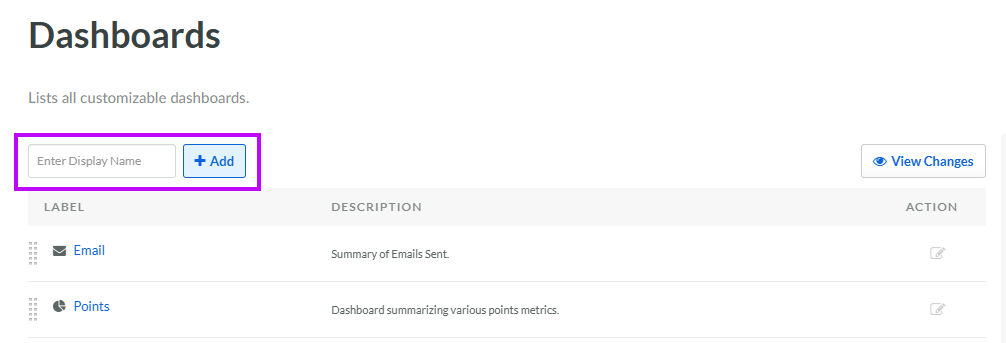
Select Analytics from the top navigation bar, then select Settings > Dashboards from the side navigation menu. The Dashboards screen is displayed and populated with all the standard and custom Dashboards defined in your Loyalty account.
-
In the Display Name field, enter the name of the new Dashboard.
-
Click Add. The platform adds the new Dashboard to the list on the Dashboards screen. By default, the new Dashboard is a Query Dashboard.
-
By default, the new Dashboard is added to the very bottom of the Dashboards screen. Optionally, you can rearrange the sequence of Dashboards. Click-and-hold on the "handle" next to the Dashboard, then drag-and-drop the Dashboard into its desired new position. Click View Changes to apply the changes and refresh the screen.
For more information on how to configure and build the new Query Dashboard, see the following Help Center articles: